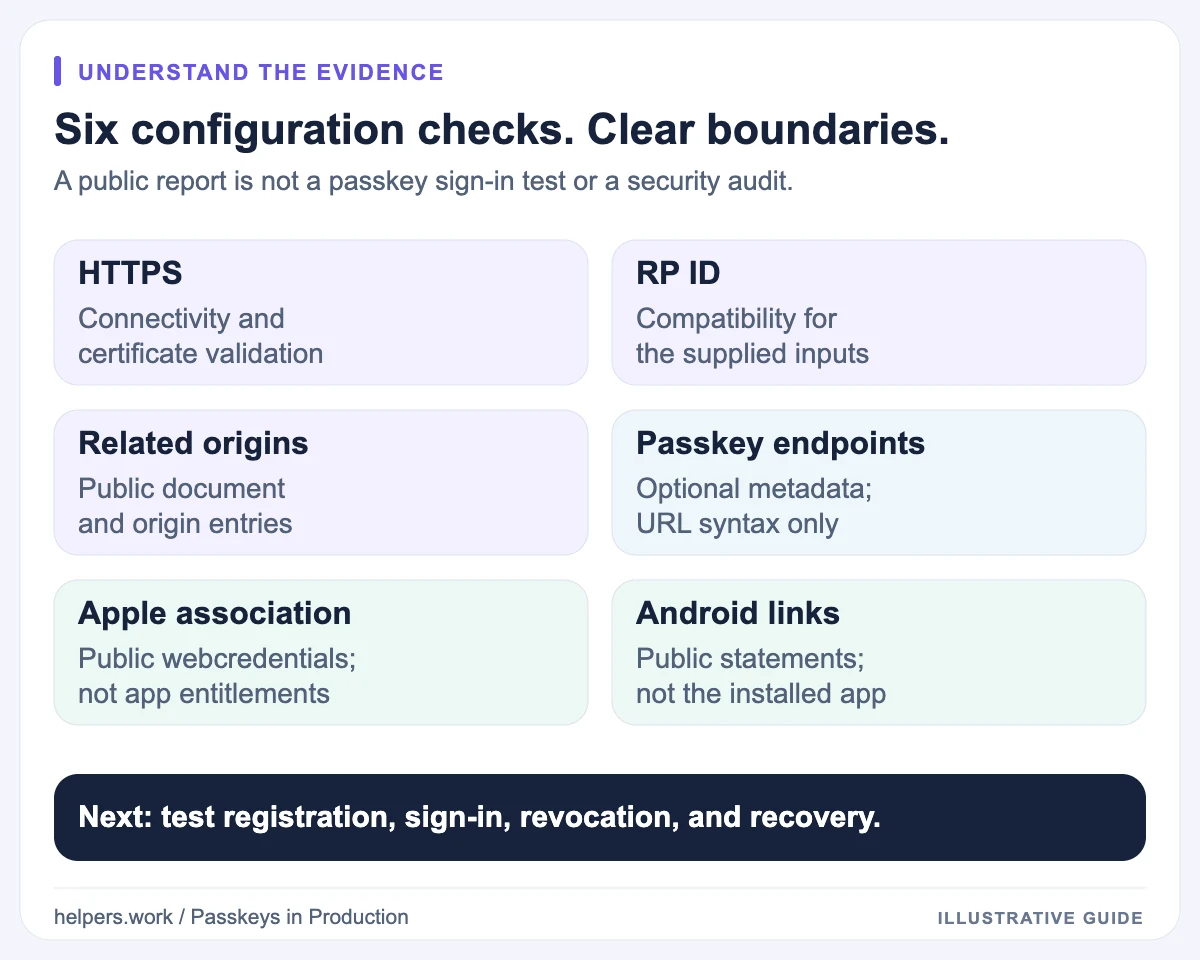
The Passkey Deployment Checker inspects publicly accessible configuration that can affect a WebAuthn deployment. It checks HTTPS, the supplied RP ID relationship, related origins, optional passkey discovery metadata, and selected native app association files.
It does not prove that passkey registration or sign-in works, and it is not a security audit. Its useful output is a set of configuration findings with evidence and next steps, not a universal passkey readiness score.
Open the Passkey Deployment Checker alongside this guide. If you are still designing the implementation, start with passkeys explained and the production deployment checklist.
Start with the actual sign-in origin
Enter the website URL or domain where the browser performs the passkey operation. If the marketing homepage redirects to https://login.example.com, use the login host when that is where WebAuthn runs.
The checker accepts a public domain or an HTTPS URL. It normalizes the website to its origin, so a supplied account path does not make this a deep scan of that page.
For example, these illustrative inputs describe the same origin:
login.example.com
https://login.example.com
https://login.example.com/account/security
They are syntax examples, not claims that this example service exists or supports passkeys.
The tool does not accept HTTP URLs, embedded URL credentials, IP-literal targets, custom website ports, localhost, or private-network targets. These are the checker's scope and safety restrictions, not a complete statement of every environment WebAuthn can support.
Do not expose a private staging service merely to make it scannable. Use local integration tests for that environment and inspect the public deployment when it is available.
Enter the RP ID explicitly
In Advanced settings, enter the RP ID your server actually uses. For registration, inspect publicKey.rp.id; for authentication, inspect publicKey.rpId.
If you leave this field blank, the checker uses the website hostname and reports the RP ID source as inferred. That is a default, not discovery.
For example:
Website: https://login.example.com
RP ID:   example.com
This can be a valid parent-domain arrangement. Leaving the field blank would instead check login.example.com as the RP ID, which may not describe your deployment.
The RP ID must be a bare domain, without a scheme, port, path, query, or fragment. See the RP ID and related origins guide for the difference between ordinary subdomain relationships and cross-domain authorization.
Select checks that match your architecture
HTTPS and RP ID compatibility are always evaluated. Related origins and passkey endpoints are selected by default. Apple and Android association checks are off by default because many websites do not have corresponding native apps.
Related origins are still checked when an unrelated RP ID makes them necessary, even if the optional selection is off.
Supply expected values when you know them:
- Related origins that should be present.
- The Apple app identifier that should appear under
webcredentials. - The Android package name and SHA-256 signing-certificate fingerprint that should match a credential-sharing statement.
Expected values make the question more precise. Without them, a well-formed association for some app is not evidence that your intended release app is represented.
Obtain the fingerprint from the actual release signing setup. A checksum of an APK or a random SHA-256 value is not the signing-certificate fingerprint.
What each check means
HTTPS Configuration
The checker makes an HTTPS request with normal certificate verification and follows a bounded HTTPS redirect chain. It reports relevant transport and certificate details when available.
A failure can indicate DNS problems, an invalid or expired certificate, a hostname mismatch, an incomplete trust chain, or an unreachable service. A warning can indicate a near-expiry certificate or an unusual server response.
This is a reachability and certificate check, not a complete TLS security assessment. It does not evaluate every cipher, security header, or application endpoint.
Use DNS Lookup and the SSL Certificate Checker when the failure is below the WebAuthn layer.
RP ID Compatibility
This result evaluates the relationship between the supplied website and RP ID. An exact hostname or eligible parent domain can satisfy the ordinary rules.
An unrelated RP ID depends on the related origins result. A supported authorization path still needs browser compatibility and a matching server verifier.
This check cannot read your credential database or prove that previously enrolled users have credentials for the RP ID you supplied.
Related Origins
The checker fetches:
https://<rp-id>/.well-known/webauthn
It examines the response and origins array, checks expected origins, and evaluates the caller against the five-registrable-label compatibility baseline.
If your supplied website and RP ID already have an ordinary compatible relationship and you do not require additional origins, a missing file can be not_applicable.
If the supplied setup requires the file, a missing or unusable document becomes a problem. The same HTTP response therefore has different meaning in different architectures.
Passkey Endpoints
This check fetches:
https://<rp-id>/.well-known/passkey-endpoints
The document helps supporting clients discover passkey creation, management, and related information pages. The recognized URL fields are enroll, manage, and prfUsageDetails.
It is optional discovery metadata. An empty object is valid under the current specification, and an absent file does not prove that passkeys are unavailable.
The checker validates advertised URLs syntactically. It does not open those pages or confirm that enrollment works. If it reports an issue with this optional file, fix the metadata without confusing that issue with a failed authentication ceremony.
Apple App Site Association
When selected, this checks the public association document on the RP ID domain, using the well-known location and a legacy root-location fallback.
For credential association, the relevant section is webcredentials.apps. A file containing only applinks can support Universal Links while still lacking the credential association you intended.
The checker can compare the declared app identifiers with your expected value. It cannot inspect the app's Associated Domains entitlement, the installed binary, or Apple's current cached association state.
Android Asset Links
When selected, this checks:
https://<rp-id>/.well-known/assetlinks.json
The credential-sharing statement needs the appropriate relation, an Android application target, a package name, and signing-certificate fingerprints. A valid statement for the wrong package or certificate does not establish the intended app association.
The tool cannot verify the app manifest, resource configuration, or certificate on the distributed binary. Public metadata and the installed application must be tested together.
Read the five statuses in context
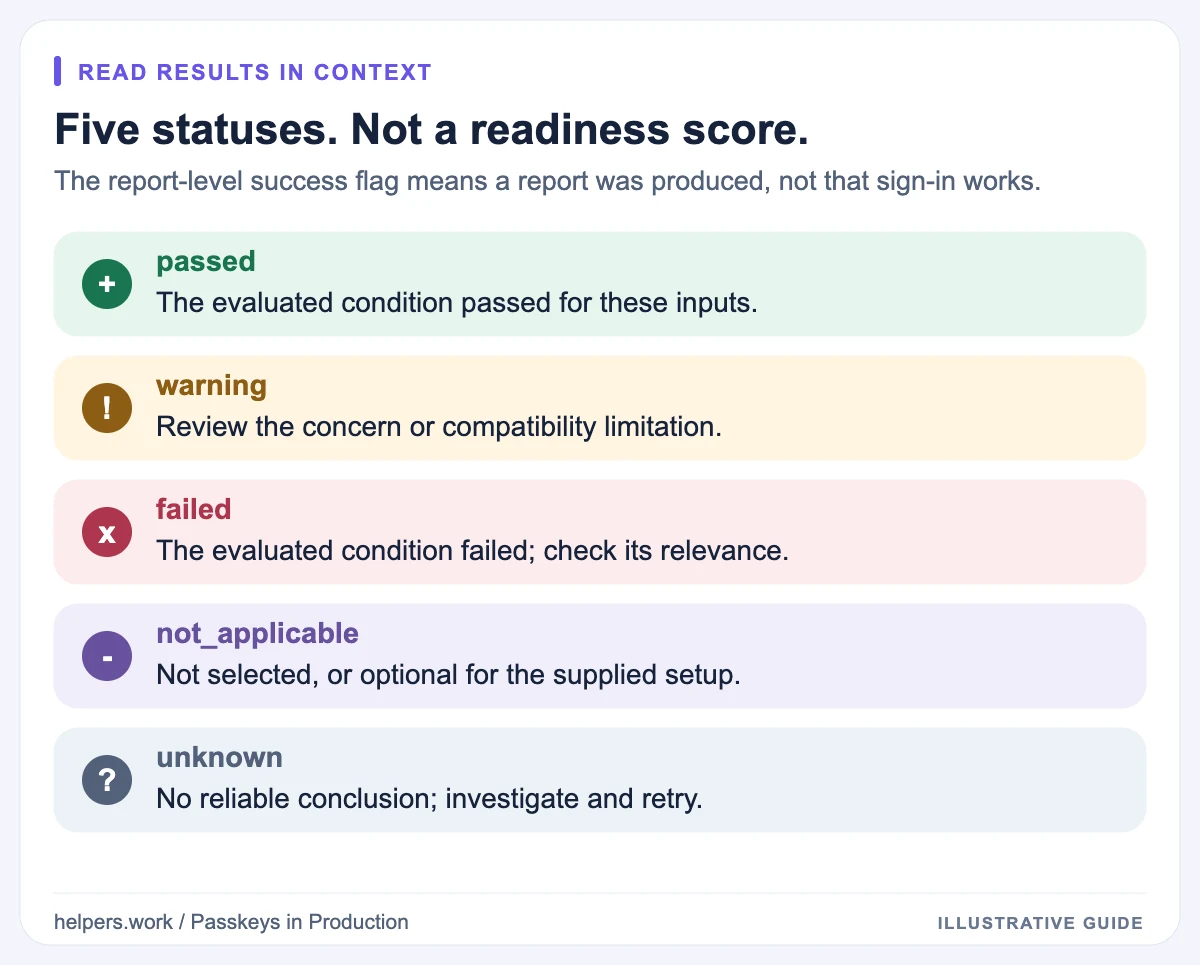
| Status | Interpretation | Next step |
|---|---|---|
passed |
The checked condition passed for the supplied inputs | Keep the evidence, then test actual registration and sign-in |
warning |
A concern or compatibility limitation needs attention | Read the details and decide whether it affects your architecture |
failed |
The evaluated condition failed | Fix the specific problem; determine whether that feature is required |
not_applicable |
A check was not selected or optional configuration does not apply | Confirm that omission is intentional |
unknown |
The checker could not reach a reliable conclusion | Investigate access, network, server, or checker errors and retry |
Do not turn these values into an unsupported percentage score. A single required failure may matter more than several passed optional checks, and a timeout is not proof of either success or failure.
The JSON report's success flag indicates that a report was produced. It does not mean every check passed. Inspect summary, the individual checks, their messages, and the report disclaimer.
Three illustrative troubleshooting scenarios
The following scenarios are hypothetical. They are not live scan results for the example domains.
A web-only site has no association files
The website uses an eligible RP ID, and there are no native apps. Missing Apple and Android files are not reasons to block the release if those checks are not part of the intended deployment.
Likewise, missing passkey endpoints can be an optional improvement rather than a sign-in defect. Focus on HTTPS, RP ID, the server verifier, and browser testing.
A country-specific domain cannot use the primary RP ID
The browser runs at https://example.co.uk, but the intended RP ID is example.com. Inspect the related origins document on example.com, not merely a file on the country-specific domain.
Check the exact caller origin, response content type, JSON structure, and client compatibility. Then confirm that the backend explicitly accepts the caller and uses the corresponding credential records.
Android works in debug but fails after distribution
A common possibility is that the public file contains a debug or upload-certificate fingerprint instead of the installed release certificate.
Compare the actual distributed signing identity, package name, and statement together. Do not add fingerprints indiscriminately. If the public file looks correct, continue with device-side association and Credential Manager diagnostics rather than repeatedly scanning the same JSON.
Fix the layer that actually failed
Start with DNS and HTTPS, then RP ID compatibility, then required discovery or association files. After that, investigate the browser, native app, and server ceremony.
For a JSON error, inspect the actual response body and use the JSON Formatter. A 200 HTML fallback is a routing issue, not a JSON punctuation issue.
For redirects, preserve the evidence. The checker permits bounded HTTPS redirects for related origins but treats passkey-endpoint and app-association redirects differently. A file being reachable after a browser redirect does not establish that the consuming client accepts that redirect.
After changing a public file, verify the deployed response rather than the local source. CDN caching, reverse proxies, and app-association caches can make the observed deployment differ from the file you just edited.
What to do after a clean report
Register a credential, sign out, authenticate again, cancel a prompt, revoke a credential, and exercise recovery. Repeat on the browser and native-app combinations you intend to support.
Review challenge handling, server origin validation, account mapping, session creation, and user-verification policy. None of those checks can be replaced by fetching public configuration.
Return to the production checklist for the full release gate, or browse the security guides. Use the checker as a focused diagnostic tool: it narrows the investigation without pretending to finish it.